How to choose the right POS software for a clothing store
Most clothing stores choose a POS after watching a ten-minute demo, then live with it for years. Test it properly first: three timed sales, the hardware actually worth buying, and the questions that separate a counter that flies from one that jams on a Saturday.
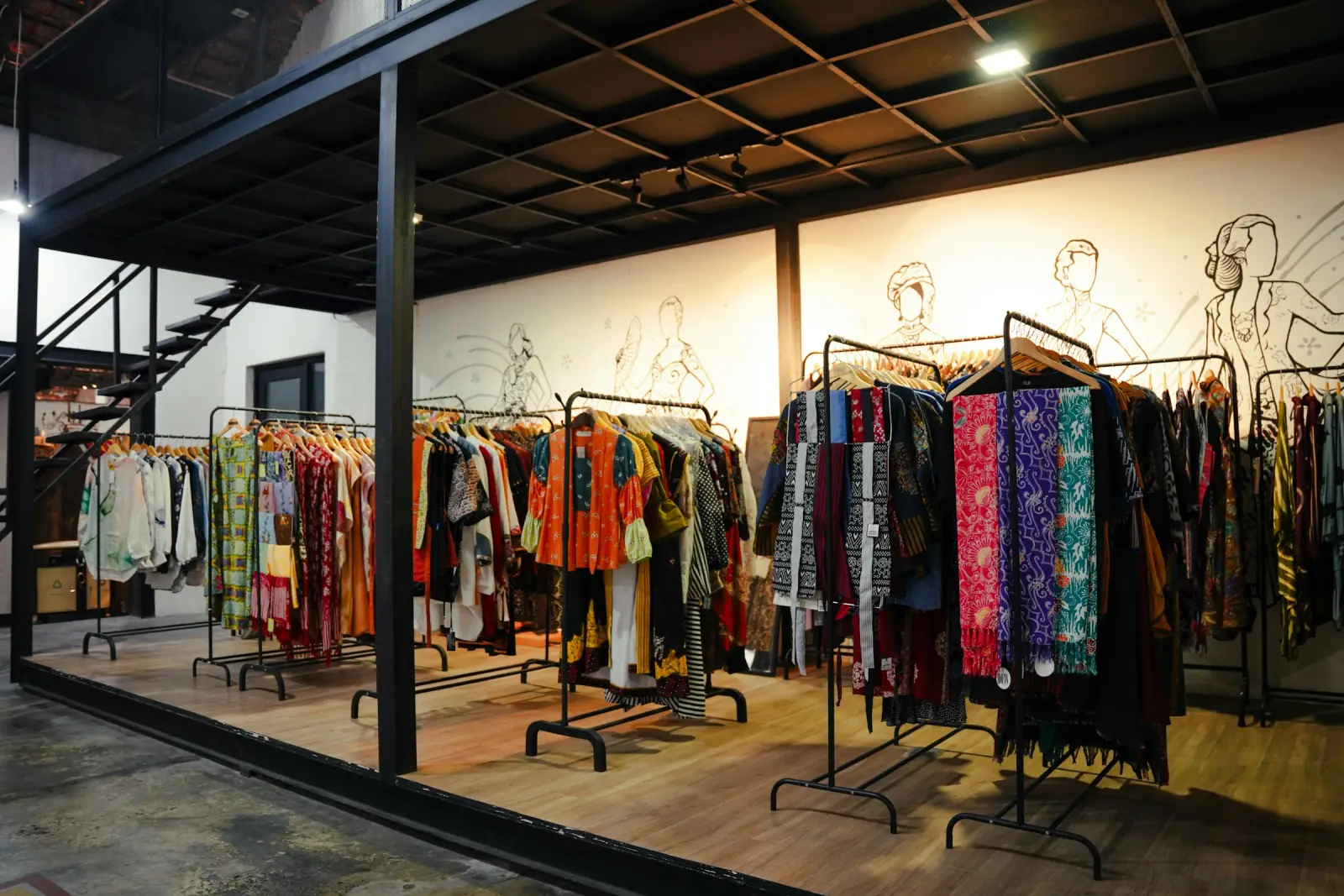
Photo: Farida Tania on Unsplash
Here is how most clothing stores end up with their POS. A cousin uses something. A salesman visits, shows a slick dashboard on a laptop, rings up one sale of one shirt, and quotes a price. The owner signs. Three months later the staff have worked out which parts of it they can avoid, and the owner is quietly back to checking stock by walking to the godown.
It doesn’t have to go that way. Choosing POS software for a clothing store is not complicated, but it does need you to test the right things. A clothing counter has its own pressures: size sets, exchanges, bargaining, a queue that builds in minutes on a festival evening, and staff you need to trust with the cash drawer but not necessarily with your margins.
This guide is the checklist we wish every shop owner had before their first demo. We build Kapda Stock for textile and clothing businesses, so we will show you how it handles each point. But the method works whatever you test with it.
Start with your counter, not the software
Before you look at a single product, spend one busy evening watching your own counter. Write down what actually happens. You will usually find five or six moments that eat the time:
- Someone asks whether a style comes in another size, and a salesman goes to look.
- The cashier reads a hand-written tag and types a price, sometimes wrongly.
- A customer wants to exchange last week’s purchase and nobody can find the bill.
- A regular asks for a discount, and the cashier phones the owner.
- The receipt printer jams, or the card machine and the bill don’t agree.
- A customer steps away to try something on and the whole queue waits.
That list is your real requirements document. A good POS removes most of those moments. A poor one adds a new one: staff fighting the software.
Six things a clothing store POS must do well
There are hundreds of possible features. These six are the ones that make or break a clothing counter. If a POS is weak on any of them, keep looking.
1. Count every size and colour separately
A shirt in five sizes and three colours is fifteen stock lines. Your POS has to know that the blue M sold out on Tuesday, even while the shelf still holds twelve shirts. In Kapda Stock each stock line has its own barcode, stock count and minimum level. Most shops give each size and colour its own SKU, such as SHT-BLU-M and SHT-BLU-L, so a search for “SHT-BLU” shows every size side by side with what is left. Load a whole bundle at once with bulk import instead of typing it in.
2. Scan, don’t type
Typing prices is the slowest and most error-prone part of manual billing. Every piece should carry a label that the POS can read. Kapda Stock gives every stock line a 12-digit barcode automatically and prints label sheets showing your shop name, the product, its size and colour, SKU, HSN, GST rate and the price including GST. Scan a label and the right size, at the right price, lands on the bill.
3. Handle exchanges properly
In a clothing store, exchanges are daily. The wrong way is to edit last week’s bill. An issued invoice is a tax document, and editing it puts your stock and your GST out of step. The right way, which Kapda Stock follows, is a return against the original invoice: the piece goes back into stock under its exact size, a numbered credit note is issued, and GST is reversed. Then the new size is billed as a fresh sale. It takes a few seconds once staff have done it twice.
4. Let you bargain, within limits
Indian retail involves negotiation, and pretending otherwise just pushes discounts off the books. The POS should let a trusted person change a line’s rate or take a discount off the bill, and it should let you decide who that trusted person is. More on that below.
5. Keep a khata for regulars
Families who buy for weddings, schools that buy uniforms, the boutique owner who picks up stock every week: some of your best customers pay later. When a bill is part-paid, the balance should land on that customer’s account automatically, not in a notebook. Kapda Stock keeps a running ledger per customer, with optional credit limits and a statement you can share.
6. Keep billing when the internet drops
A cloud POS that freezes when Jio slows down is a liability on the busiest night of the year. Ask the vendor to switch off the Wi-Fi during the demo and ring up a sale. Kapda Stock’s POS saves the sale on the device and syncs it into a normal invoice when the connection comes back, as long as the POS screen was already open. The offline mode guide explains the rules.
Run a timed test before you sign anything
A demo shows you what the vendor wants you to see. A test shows you what your cashier will live with. Get a working account (with Kapda Stock, that is one month on the ₹349 monthly plan), add ten of your own products, print their labels, and time these three sales with a stopwatch on your phone:
- The family bill. Eight pieces, three of them the same style in different sizes, one with a negotiated price, paid partly in cash and partly by UPI.
- The exchange. Take back one piece from an earlier bill, issue the credit, and bill a different size.
- The interrupted bill. Start a bill, put it on hold while the customer tries something on, serve another customer completely, then finish the first bill.
On Kapda Stock, with labels on every piece, the family bill is mostly scanning: scan eight times, change one rate, split the payment, press F9. Nothing is typed except the agreed price and the cash amount. The interrupted bill uses Park bill (F6) and Held bills (F7). Every action on the POS screen has a keyboard shortcut, and pressing ? shows them all.

The hardware: buy less than the salesman suggests
Old-style POS systems came with a locked-in terminal, a branded printer and an annual maintenance contract. You don’t need any of that. Kapda Stock runs in the browser on whatever you already have, and can be installed like an app on a phone, tablet or computer. A typical clothing counter needs only this much:
| Item | What to buy | Why |
|---|---|---|
| Billing device | Any laptop or desktop with Chrome or Edge; a phone or tablet also works | Direct thermal printing uses the browser’s Web Serial feature on desktop Chrome and Edge |
| Receipt printer | 80 mm ESC/POS thermal printer, USB | Standard on Indian counters; set it to 9600 baud |
| Scanner | A 2-D (imager) scanner in keyboard mode, USB or Bluetooth | Kapda Stock labels carry a QR code, which basic 1-D laser scanners cannot read |
| Labels | Label sheets or plain A4 paper | Labels print as a PDF from Inventory |
| Backup scanner | The phone in your pocket | POS can scan with any phone or laptop camera |
That scanner row deserves a second look, because it is the most common buying mistake we see. The cheapest red-laser guns only read striped 1-D barcodes. Kapda Stock labels use a QR code, which reads better off a crumpled tag, but it needs a 2-D imager scanner. If you already own a 1-D gun, keep it in the drawer and scan with a phone camera until you replace it.
On a phone or tablet, or with a Bluetooth printer installed as a normal system printer, use the Thermal preview PDF: it is exactly 80 mm wide and prints as one strip. The printing guide has the settings, and printing troubleshooting covers the usual problems.
Staff permissions: trust, with limits
Most owners worry less about software bugs than about people. Who can give a discount? Who can see what a style cost? Who can delete a bill? Look closely at how a POS answers these, because a one-size-fits-all “staff login” gives away more than you think.
Kapda Stock sets access per person, section by section, through the module access matrix. The counter salesman can get POS and nothing else. The godown in-charge gets Inventory and purchases. Your accountant gets Finance and GST. On top of that, action switches decide finer things:
- See cost price & profit: switch it off and purchase prices, margins and stock valuation disappear for that person.
- Give discounts / change price: decides who may bargain at the POS.
- Record payments: decides who may take money against a bill.
Changes apply within about a minute, even for someone already signed in, so a person who leaves on bad terms loses access straight away. Invoices and payments are never permanently deleted, so the record of what happened is always there. See roles for what each level can do.

Turning the POS into repeat customers
A clothing store lives on regulars. Your POS already knows who they are, what they buy and how often, and a good one uses that.
- Loyalty points. Set an earn rate in settings and named customers earn points on every bill, redeemable at ₹1 a point. Simple enough that customers understand it.
- Coupons and offers. Create an *Eid Sale* or *Diwali 10% off* code with a minimum bill, a maximum discount, a usage limit and dates. Cashiers type the code; the POS checks the rules. See offers and coupons.
- Bills on WhatsApp. Dispatch on an invoice sends it by WhatsApp, SMS and email from your shop’s own number, so the customer has your contact saved for the next sale. See WhatsApp.
- A UPI QR on every bill. Add your UPI ID in invoicing settings and each receipt carries a QR code for the exact amount.
Reports that change how you run the floor
Every sale through the POS feeds the reports, without any end-of-day typing. A few are particularly useful for a clothing store:
- Sales by time shows revenue by hour and weekday in IST. If 6 to 9 PM on Sundays brings a third of your takings, that is when you need two people billing. See sales by time.
- Basket analysis shows the number of bills, the average bill value and items per bill. A rising average bill is the clearest sign your staff are selling, not just billing. See basket analysis.
- Discounts shows how much you gave away, and on which bills. See discounts.
- Dead stock lists anything that hasn’t sold in 90 days: usually odd sizes and last season’s colours. Clear them with an offer before the new bundles arrive. See the reports hub.
And at 9 every morning the low-stock alert reaches the owner as a push notification and an email with each size at or below its minimum, so the M that sold out yesterday is on your next order. See low stock and reorder.

Five mistakes stores make in the first month
Most POS rollouts that fail don’t fail because of the software. They fail in the first few weeks, through habits that seemed harmless at the time. These are the ones we see most often.
- Labelling “later”. A piece that reaches the rack without a label gets billed by guesswork: the wrong size, the wrong price, or typed in as a miscellaneous item. Within a month the stock count is fiction. Make labelling part of unpacking a bundle, before anything goes on display.
- Everyone on one login. It is quicker on day one and a disaster by day thirty. You can’t tell who gave a discount or who took a payment, and you can’t remove access from one person without locking out everyone. Give each person their own login from the start; Growth includes three team members besides the owner.
- No minimum stock levels. Without a minimum on each size, the morning low-stock alert has nothing to tell you, and the M that sold out quietly stays sold out. Set 2 or 3 on fast sizes and 1 on slow ones. It takes ten minutes with a spreadsheet.
- Running two systems for months. A day or two of billing in parallel builds confidence. Three months of it means two sets of numbers that never agree, and staff who drift back to the register. Pick a date and stop.
- Opening balances left in the diary. If udhaar balances stay on paper, every credit customer has two accounts, and neither is right. Move them over in the first week, even if it is only your top twenty.
None of these needs special skill to avoid. They just need deciding on before day one, not after. Our 30-day switching plan builds each of them into the schedule.
Questions to ask any POS vendor
Print this list and take it to every demo. Ask to see each answer on screen.
- Can every size and colour have its own barcode, stock and minimum level?
- What scanner do your labels need? (A surprising number of vendors don’t know.)
- Can you show me an exchange that issues a credit note instead of editing the bill?
- Can I stop a salesman from seeing cost prices and limit who gives discounts?
- What happens if the internet drops in the middle of a sale?
- Does it print on my existing 80 mm printer without special drivers?
- Where is my data backed up, and can I keep a copy in my own Google Drive?
- Is there a setup fee, a per-bill charge, or an annual maintenance contract?
- Can I export my data, or the figures my CA needs, without asking you?
For Kapda Stock, the answers are: yes; a 2-D imager or a phone camera; yes; yes; it saves and syncs later; yes; nightly, and yes (backups); no; and yes, through the GST pack and the Tally export.
What a clothing store POS should cost
Kapda Stock has two self-serve plans, billed monthly or yearly. Prices are before 18% GST. There is no setup fee, no charge per bill and no maintenance contract.
| Growth | Professional | |
|---|---|---|
| Monthly | ₹349 | ₹599 |
| Yearly | ₹3,499 | ₹5,999 |
| Team members (owner not counted) | 3 | 5 |
| Products (each size and colour counts as one) | 1,000 | 10,000 |
| Invoices per month | 5,000 | 15,000 |
Because each size and colour is its own product, 1,000 products is roughly 100 to 150 styles in full size sets. A single-counter kurti or kidswear store fits Growth. A family store with menswear, ethnic wear and kids’ sections, or more than three people billing, usually wants Professional. Every POS feature in this guide is in both. The pricing page has the full comparison.
Going live in one weekend
- Saturday morning: sign up, add your GSTIN and UPI ID.
- Saturday afternoon: import your top 30 styles, every size and colour, and print their labels.
- Saturday evening: run the counter on Kapda Stock alongside your old method.
- Sunday: add staff with the right access, and move your regular credit customers’ balances over.
- Monday: label the rest of the stock as it goes on the rack.
Our 30-day switching plan covers the first month in detail. For more on running a garment counter, read billing software for readymade garments, and for the tax side, GST billing software for garment shops. The garment shop billing software page has a quick overview.
Frequently asked questions
What is the best POS software for a clothing store in India?
Look for a POS that tracks every size and colour separately, scans labels, handles exchanges through credit notes, keeps a khata for regulars, controls what each staff member can see, and keeps billing when the internet drops. Kapda Stock is built for textile and clothing stores and does all of these.
What hardware do I need for a clothing store POS?
For Kapda Stock: a laptop or desktop with Chrome or Edge (a phone or tablet also works), an 80 mm ESC/POS thermal printer and a 2-D imager barcode scanner. Labels print on sheets or plain paper. A phone camera can scan labels if you have no scanner yet.
Can I use my phone as a POS for my clothing shop?
Yes. Kapda Stock runs in the phone’s browser and can be installed like an app. The phone camera scans labels, and receipts print from the 80 mm thermal PDF or go to the customer on WhatsApp. Direct USB thermal printing needs desktop Chrome or Edge.
How should a clothing store handle exchanges in the POS?
Never edit the original bill. Process a return against it so the piece goes back into stock under its exact size, a credit note is issued and GST is reversed, then bill the new size as a fresh sale. Kapda Stock does this from the original invoice in a few clicks.
How much does POS software for a clothing store cost?
Kapda Stock costs ₹349 a month or ₹3,499 a year on Growth, and ₹599 a month or ₹5,999 a year on Professional, before 18% GST. There is no setup fee, per-bill charge or maintenance contract. See the pricing page.
See it working in your own shop
Set up a workspace in under a minute, or read the step-by-step guides in the docs.